- Add Fezerli to Chrome and open your LinkedIn feed once.
- Sign up with your email, then fill in About you, Comment rules and a few Voice examples.
- Click a tone under any post, read the draft, press Post yourself.
- On Pro, tell Autopilot which posts to answer and keep the safe daily limits.
- Want it to work while you're in other apps? Install the Fezerli app.
1. Install it and open LinkedIn
Add Fezerli from the Chrome Web Store and pin its icon next to the address bar, you'll open it often. Then open your LinkedIn feed once. Fezerli sees which LinkedIn profile you're signed in with and licenses itself to it, so your first 50 drafts work without any sign up.
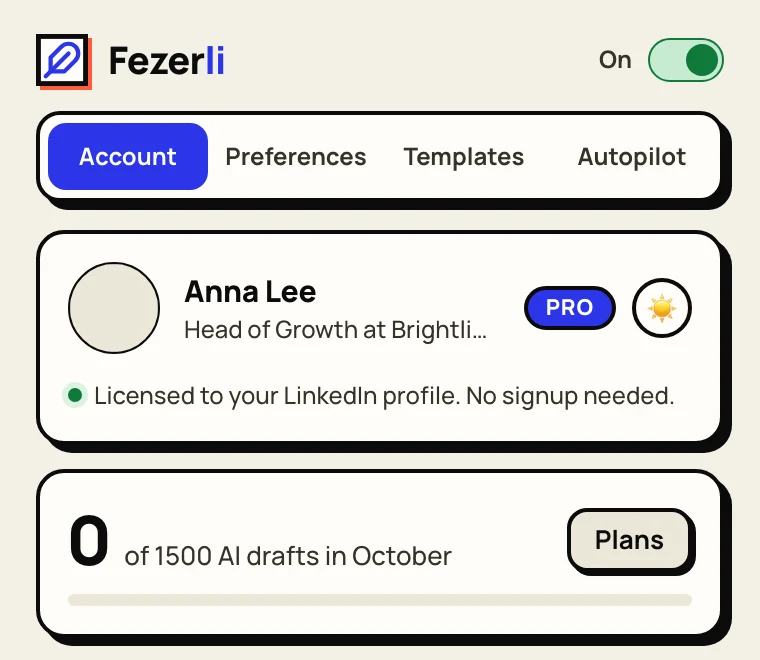
After those 50, a free account gives you 25 drafts a month. Signing up takes an email and a six digit code. There's no password and, on purpose, no sign in with Google, Microsoft or LinkedIn: none of them learns that you use Fezerli.
2. Make it sound like you
This is the part that matters most. The Personalization card on the Account tab goes into every comment and message the AI writes for you. Leave it empty and a polite stranger writes on your behalf. Four fields, five minutes:
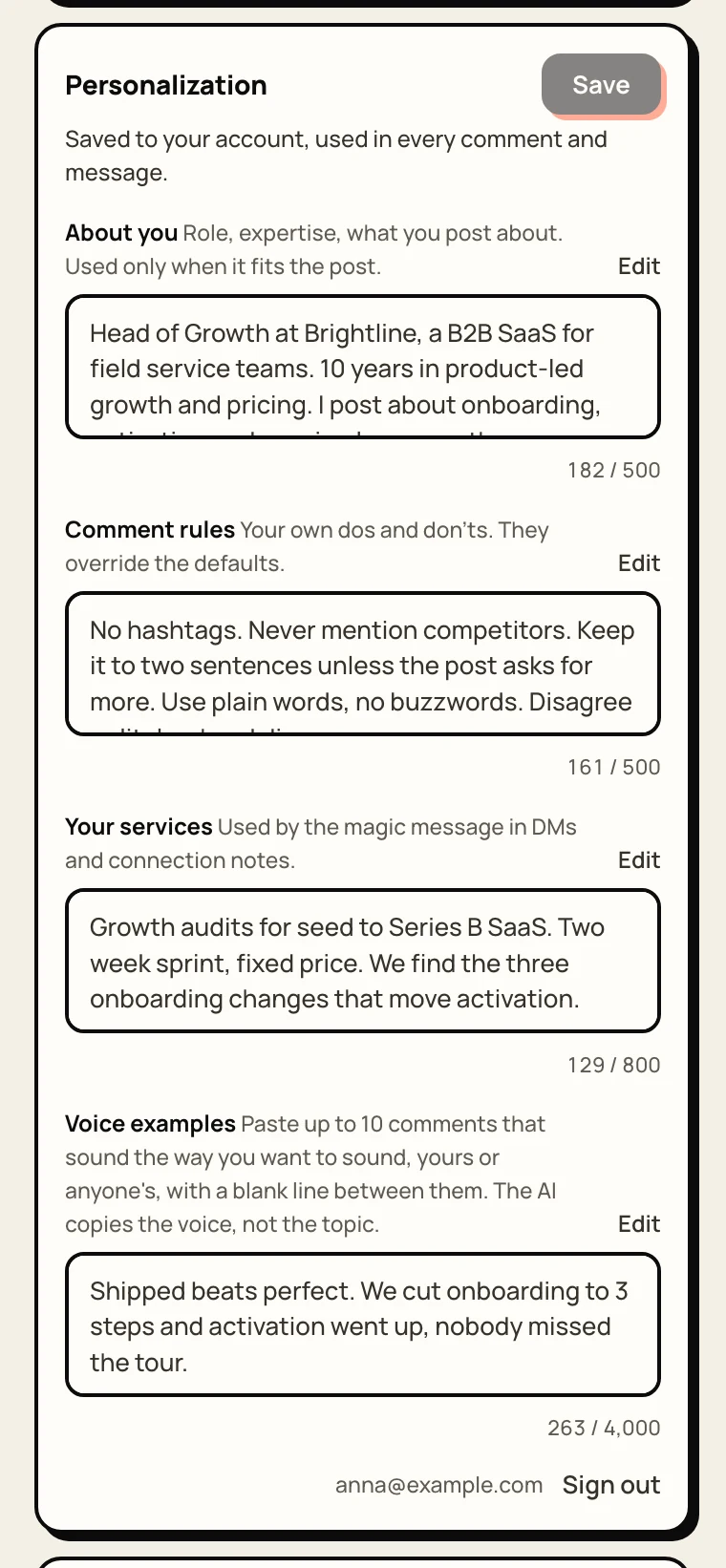
- Voice examplesThe strongest lever. Paste up to ten comments that sound the way you want to sound, yours or anyone's, with a blank line between them. The AI copies the rhythm and the word choice, not the topics. Five real comments you're proud of beat a page of instructions.Like: “Shipped beats perfect. We cut onboarding to 3 steps and activation went up, nobody missed the tour.”
- About youTwo or three plain sentences: your role, what your company does, what you post about. It's used only when it fits the post, so your job title won't show up in every comment.Like: “Head of Growth at Brightline, a B2B SaaS for field service teams. I post about onboarding and pricing.”
- Comment rulesYour own dos and don'ts, and they win over our defaults. Short rules you could check by eye work best.Like: “No hashtags. Never mention competitors. Two sentences at most. Disagree politely when I disagree.”
- Your servicesWhat you sell, to whom, and one proof point. It's used only in direct messages and connection notes, never in public comments.Like: “Growth audits for seed to Series B SaaS. Two week sprint, fixed price.”
3. Write your first comment
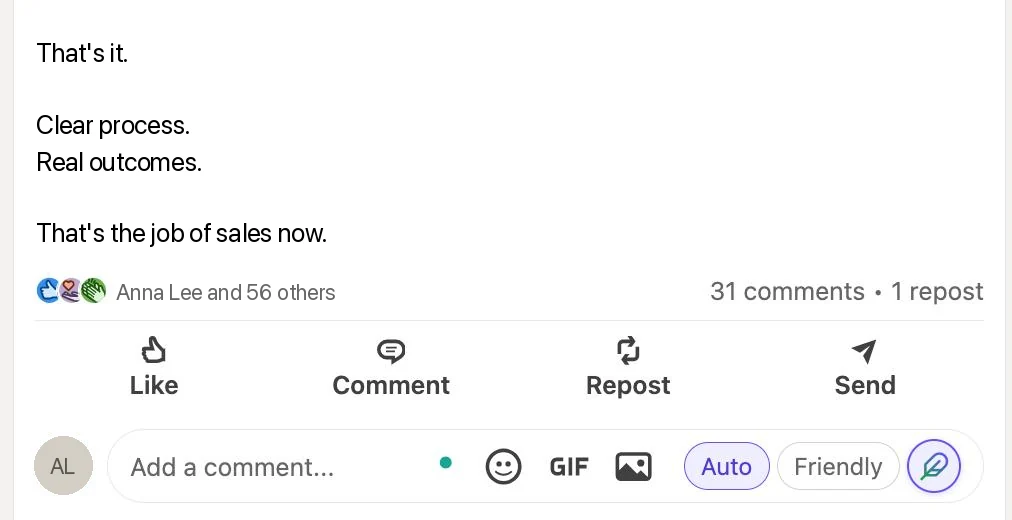
Open the comment box under any post. Next to LinkedIn's emoji and GIF buttons there are two tone chips, Auto and Friendly unless you change them. Click one and the draft appears in the box. Before writing, Fezerli reads the whole post: the text, images, carousels and PDFs, the original of a repost and the top comments.
- Not the angle you wanted? Click the chip again for a fresh one.
- One phrase is off? Select it and say how, for example “shorter” or “less formal”. Only that part changes.
- You know something the post doesn't say? Hover the quill for a second and add a line of context, like “met her at SaaStr”. The draft builds on it.
- It never posts on its own. You read it, edit it and press Post.
Prefer a draft the moment you click Comment? Turn on “Write when I click Comment” in Preferences. Then Alt or Option click skips it when you'd rather write yourself.
4. Tones, length and the small switches
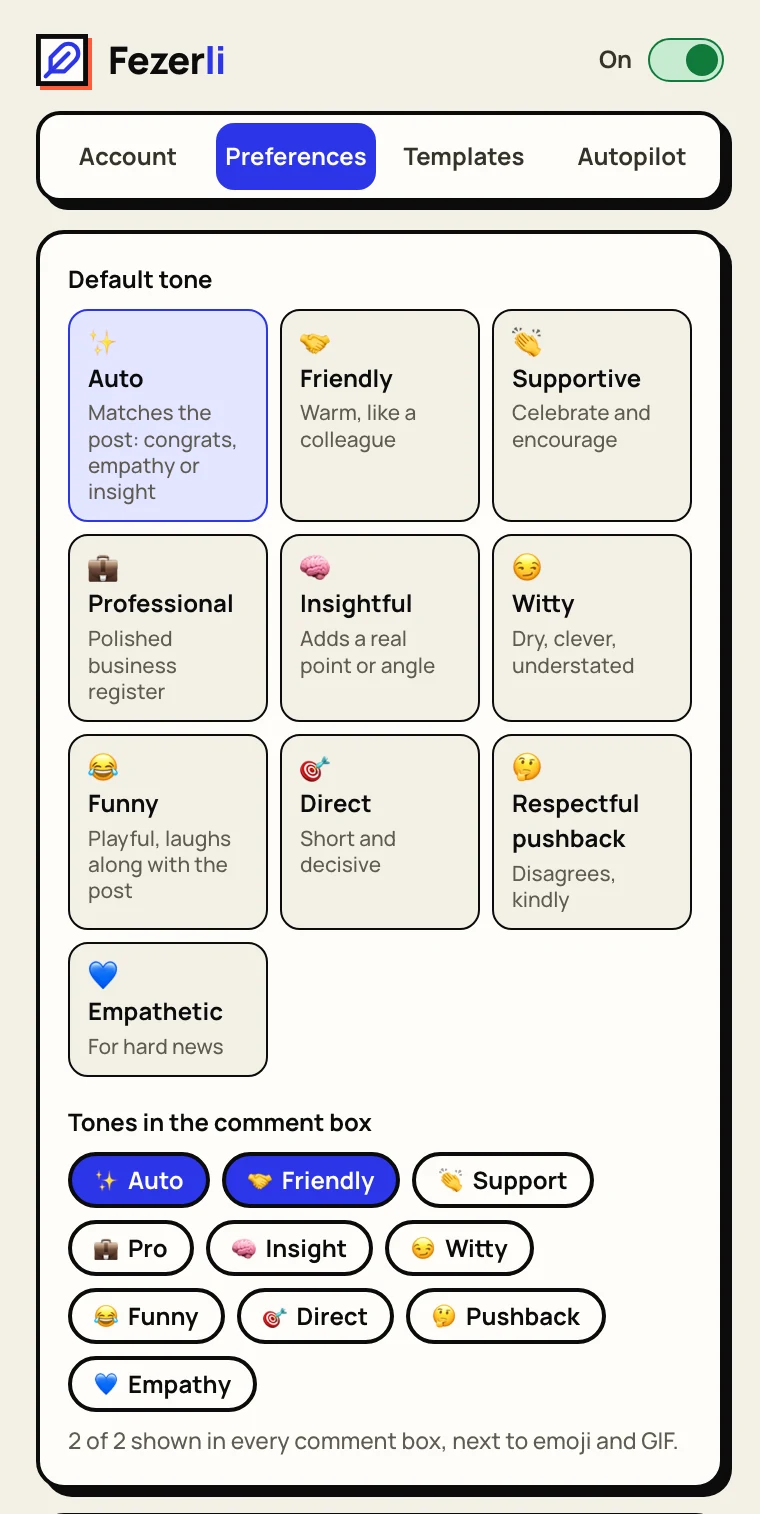
There are ten tones, from Friendly and Insightful to Direct and Respectful pushback. Auto picks the one that fits each post and is the safe default. Pin the two you use most.
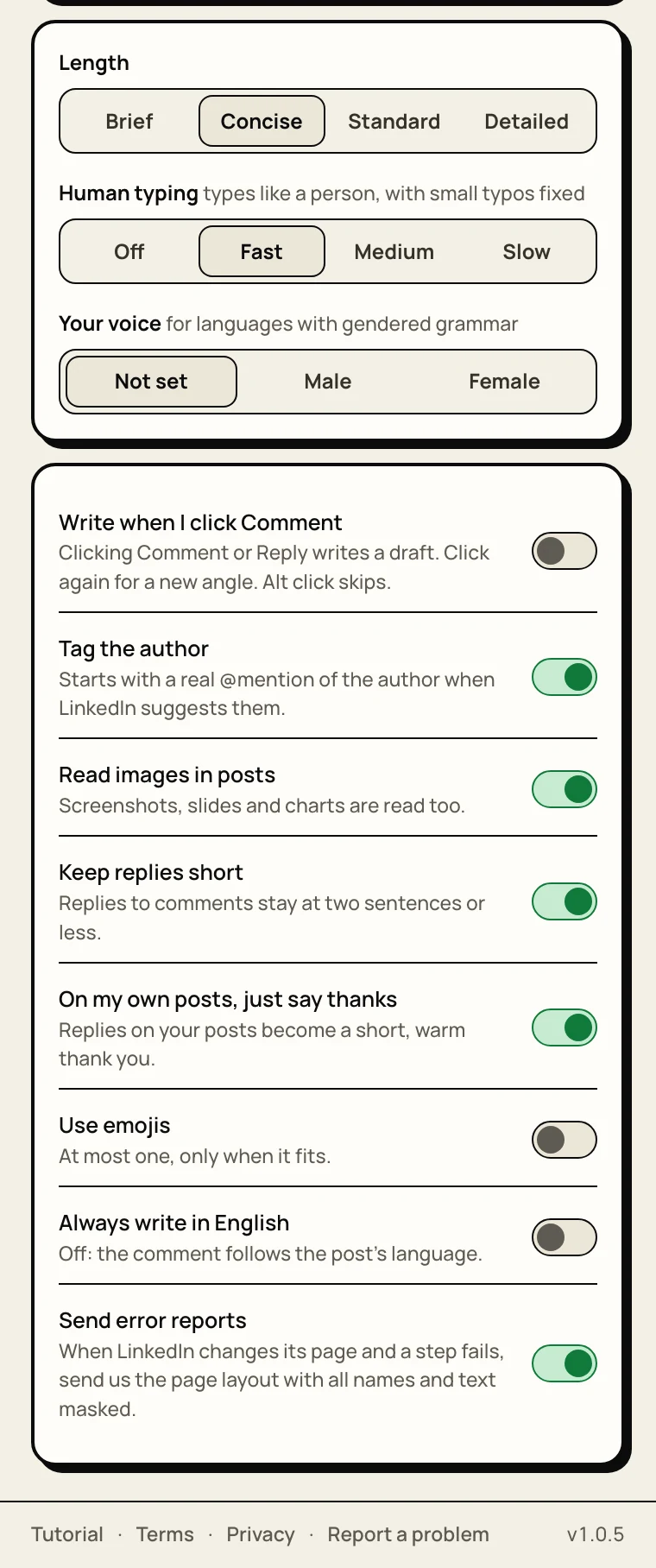
- Length. Concise fits most posts. Brief is one line, Detailed goes up to four sentences.
- Human typing. Autopilot types letter by letter at this speed, with the small pauses people make.
- Your voice. Set it if you write in a language with gendered grammar, like Ukrainian, German or Spanish.
- Tag the author. Starts with a real @mention picked from LinkedIn's own list, not a typed name.
- Keep replies short and On my own posts, just say thanks keep replies under comments light.
- Always write in English. Off means the comment follows the language of the post.
5. Messages, connection notes and templates
Fezerli works in LinkedIn messages too. Click the quill in a message box and it drafts the next reply from the conversation, or an opener when the thread is empty. In the note of a connection request it writes a short, plain note. Both use Your services when it fits.
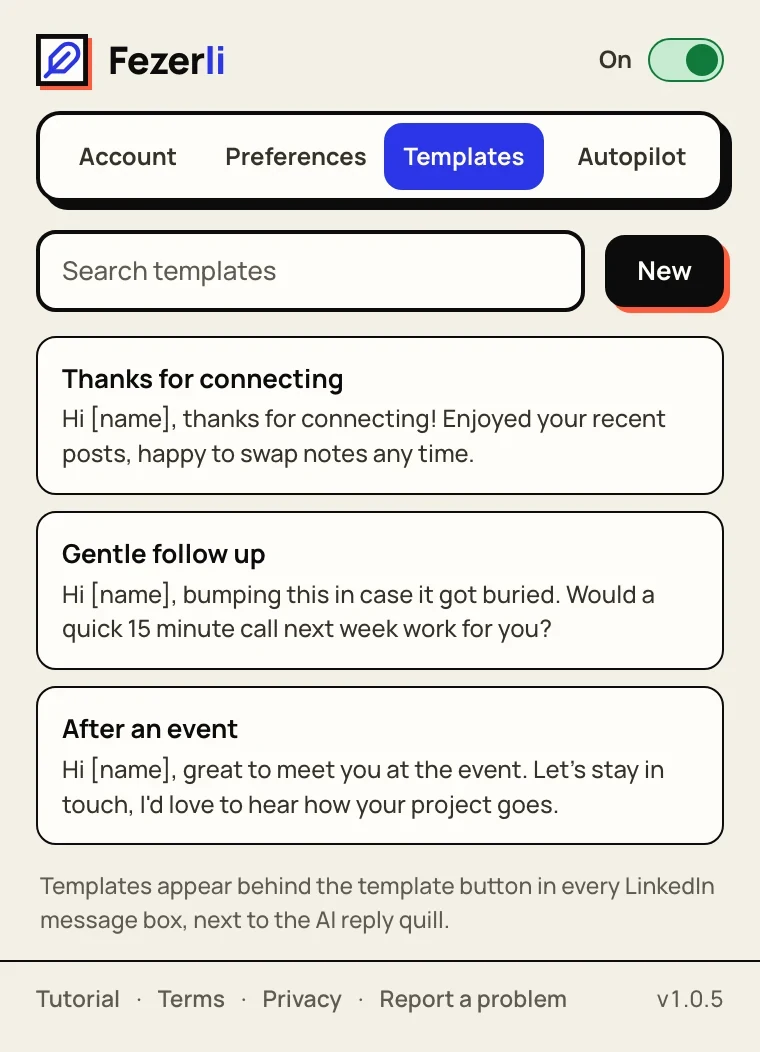
Templates are for the messages you send every week. Write them once in the Templates tab, and [name] becomes the person's first name. In a message box, open the templates, type to search, pick one with the arrow keys and press Enter.
6. Autopilot: comments while you work
Autopilot is part of Pro and Team. On a free account you can try it while your first 50 drafts last. It walks your feed, picks posts that match your rules, writes in your voice, types the comment like a person, posts it and waits a random pause before the next one.
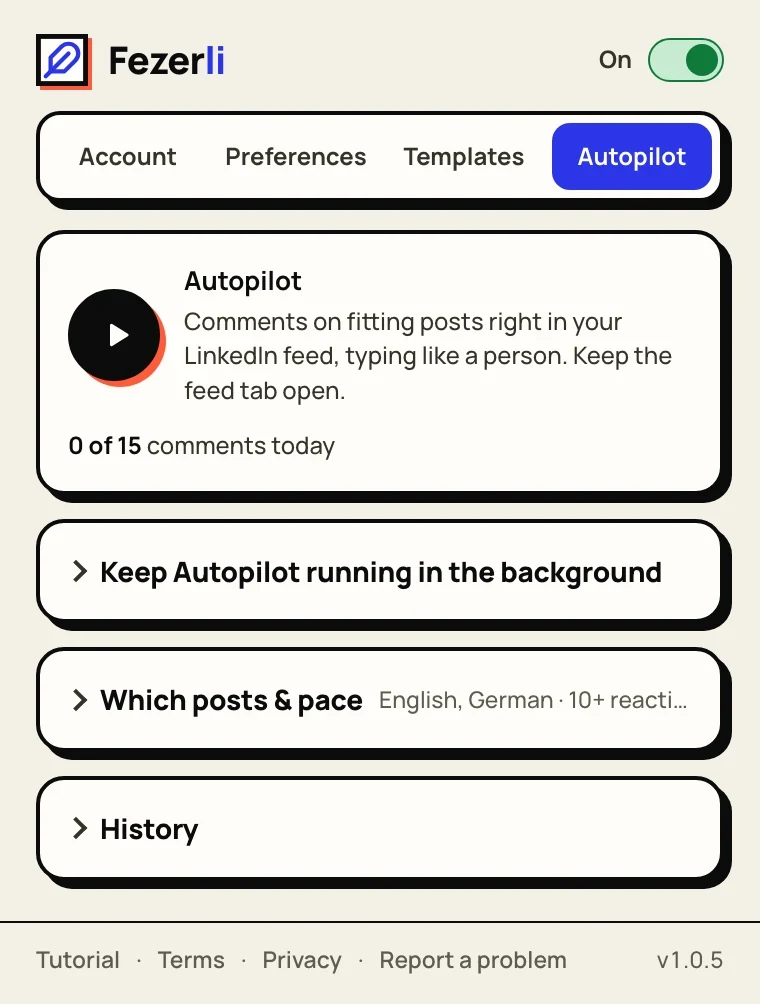
It runs only while your LinkedIn feed is open in a tab that's in front. Use LinkedIn in another tab and it pauses, come back and it carries on. Before the first run you confirm that you understand the risk, more on that in Limits.
Which posts it answers
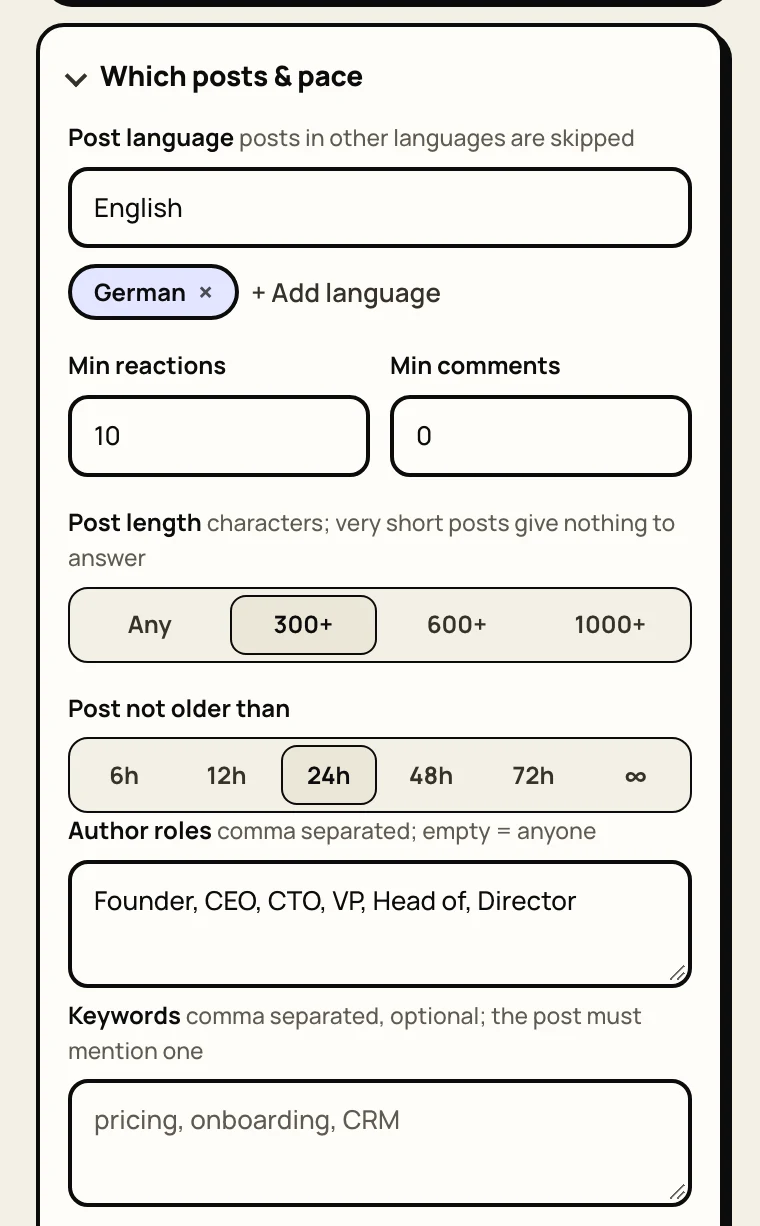
- Post language. English by default. Posts in other languages are skipped, so add the ones you read.
- Min reactions and comments. 10 reactions by default, enough to skip posts nobody reads.
- Post length. 300 characters and up by default. Very short posts give nothing to answer.
- Post age. 24 hours by default. Late comments get seen by fewer people.
- Author roles. Founder, CEO, CTO, VP, Head of, Director. Leave it empty to comment on anyone.
- Keywords. Optional. If you add some, the post has to mention one of them.
If Autopilot runs but finds nothing, the filters are usually too tight. Loosen one at a time.
Watchlist and stop list
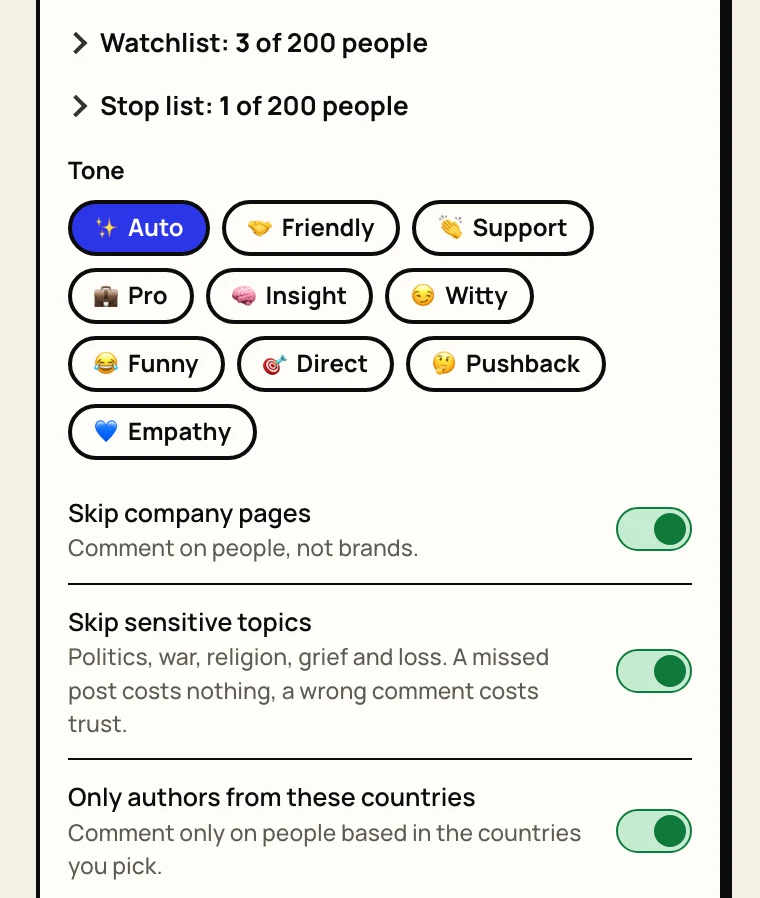
Watchlist. Set the LinkedIn bell to All on someone's profile and they're on it. Their new posts go first, and Fezerli finds them in your LinkedIn notifications. Up to 200 people. You can also paste rows from Excel or Google Sheets, or import a CSV.
Stop list. People Autopilot never comments on, even when they're on the watchlist. Switch their bell to Off and they're added for you. Also up to 200 people.
Skip company pages and Skip sensitive topics are on by default. Politics, war, religion, grief and loss get skipped: a missed post costs nothing, a wrong comment costs trust.
Authors from your countries
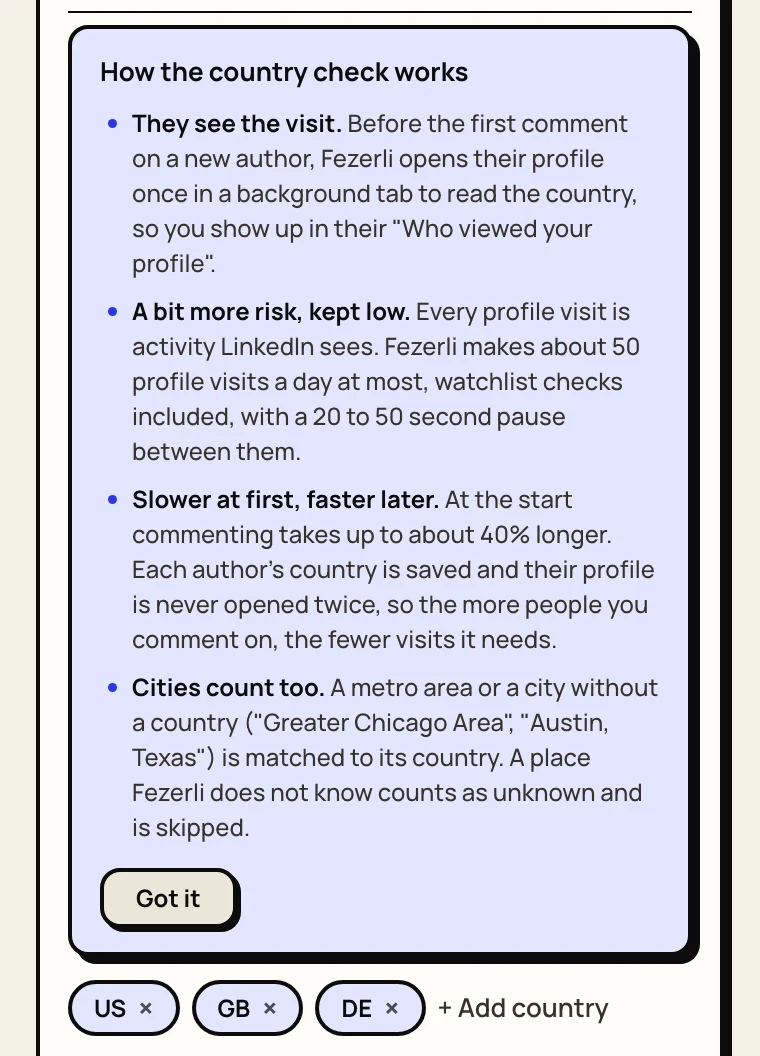
On Pro, Autopilot can stick to authors from the countries you sell to. The feed doesn't show where an author lives, so before the first comment on a new author Fezerli opens their profile once in a background tab and reads it. They'll see a profile view from you. Every author is checked once and remembered, so it's slower at first and gets faster.
7. Limits, and why not to push them
LinkedIn doesn't allow automated commenting, and it watches behaviour: how many comments a day, how evenly they're spaced, how many profiles you visit, how alike the comments are. Fezerli can't undo a restriction. Only LinkedIn can lift it.
That's why Autopilot ships with careful limits, and why they stay locked until you tick “I understand the risk and want to set my own pace”.
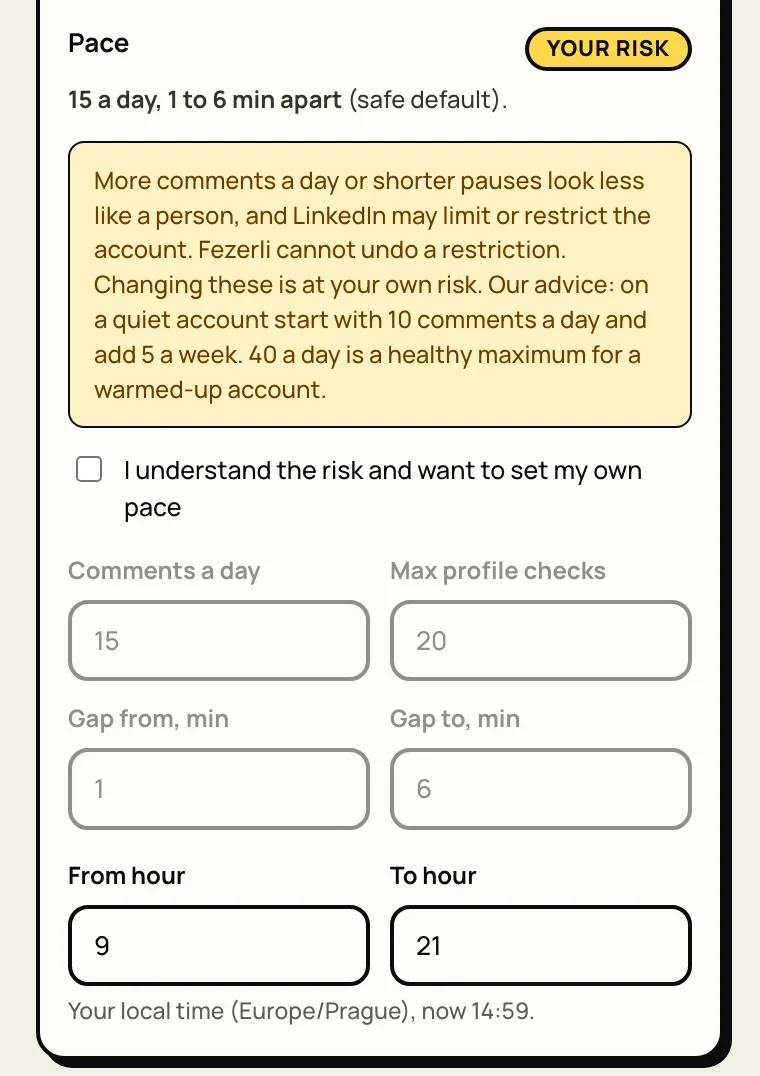
| Setting | Default | Can go up to |
|---|---|---|
| Comments a day | 15 | 80 |
| Profile checks a day | 20 | 50 |
| Pause between comments | random, 1 to 6 min | 120 min |
| Working hours | 9:00 to 21:00, your local time | any hours |
| Same author | at most once a week | fixed |
Our advice: on a quiet account start with 10 comments a day and add 5 a week. About 40 a day is a healthy ceiling for a warmed up account with a long, active history. Keep profile checks under 40 a day: above that the risk of a restriction rises sharply.
Why we hold back on purpose:
- Nothing runs on a stopwatch. The daily cap moves a little every day, the pauses are random down to the second, and Autopilot stays inside your working hours.
- Volume is what gets accounts flagged. Fifty comments a day from one profile looks like a tool, to LinkedIn and to the people reading them. Since July 2026 any reader can flag a comment as “Seems like AI slop”.
- Fewer, better comments win anyway. A handful of specific comments under the right posts brings more profile visits than dozens of quick ones.
Drafts you write and post yourself carry no extra risk, it's the same as typing. The limits are about Autopilot only. If something does go wrong, here's what gets accounts restricted and how to get one back.
8. Keep Autopilot running in the background
Chrome stops drawing a tab you aren't looking at. Cover the window, switch to another app or lock the screen, and the feed stops loading, so Autopilot waits. The Fezerli app fixes that.
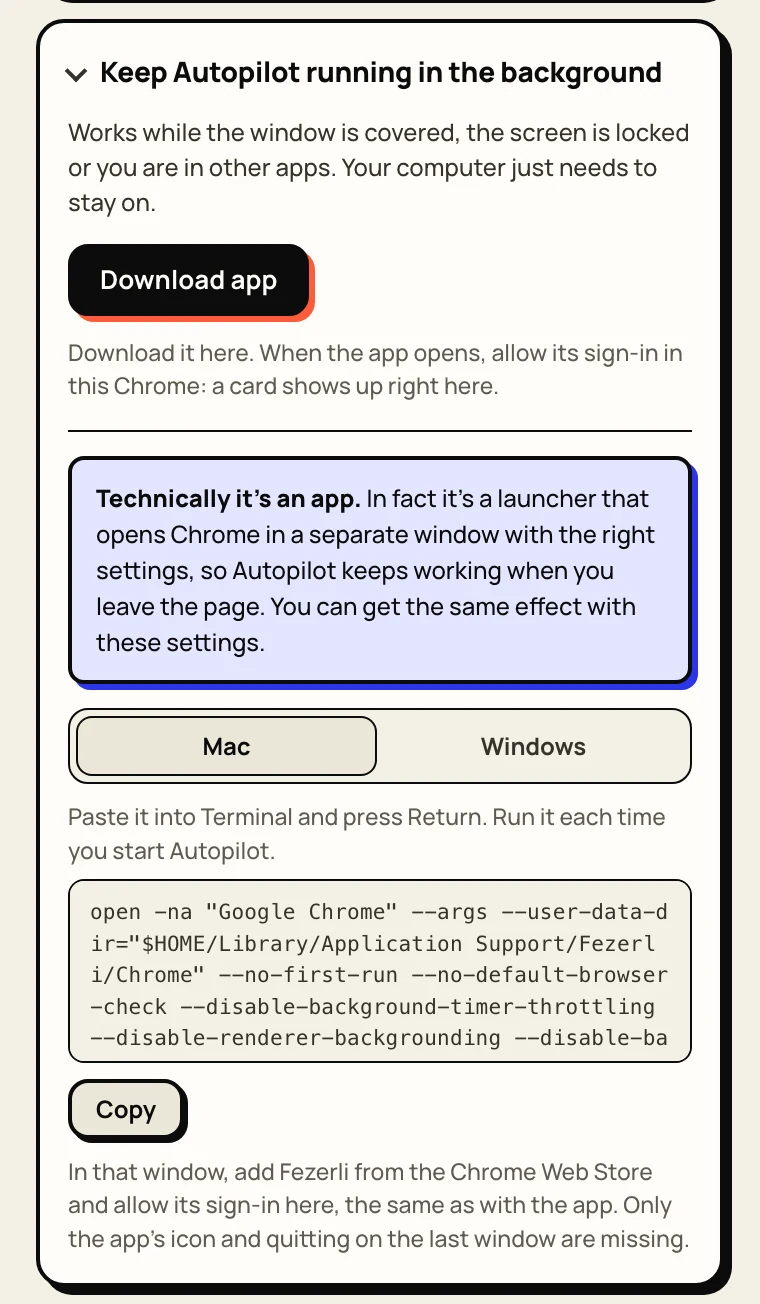
Technically it's an app. In fact it's a small launcher: it opens your own Google Chrome in a separate window, with its own Fezerli profile and the right settings, so the feed keeps working when you leave it. Cover the window, work in other apps, lock the screen or let the display sleep. Autopilot keeps commenting as long as the computer is on. Only minimizing the window pauses it, and Fezerli brings the window back.
- On the Autopilot tab, open “Keep Autopilot running in the background” and click Download app. The download page has one command for Mac and one for Windows that install it without security prompts.
- The app opens Chrome with LinkedIn and a short setup page. Add Fezerli there from the Chrome Web Store.
- In your everyday Chrome, Fezerli shows a card asking to allow the app's sign in. Allow it, and Autopilot starts in the app window.
Close the app window to stop it. Your everyday Chrome stays free the whole time. While the app runs, using LinkedIn in your everyday Chrome pauses it, so the two never act at once. The app is part of Pro and Team and updates itself.
Prefer not to install anything? The same card shows the Chrome settings to apply by hand: one Terminal line on a Mac, or a Chrome shortcut with a few flags on Windows. Fezerli still updates itself from the Chrome Web Store there. You only miss the app icon and quitting on the last window.
9. When something looks off
- Autopilot runs but comments on nothing.
- The filters are too tight. Lower the minimum reactions, allow older posts or more languages, or clear the author roles. It looks a few screens ahead, so scroll the feed a little.
- “Paused, open your LinkedIn feed.”
- Autopilot works on the feed and on the watchlist posts it opens itself. Open linkedin.com/feed in the tab in front.
- “Paused, you are using LinkedIn in another tab.”
- It waits while you browse LinkedIn yourself, then carries on.
- “LinkedIn changed its page.”
- LinkedIn changes its layout now and then. Autopilot holds instead of clicking blind until we update it, usually within a day.
- Drafts used up.
- The meter on the Account tab shows what's left. Plans start at $11.47 a month, or buy 1,000 drafts once.
Anything else? Click Report a problem at the bottom of the popup, it sends us what we need. Or write to admin@fezerli.com.
Written for Fezerli 1.0.5 on 21 October 2026. The screens show a demo account. LinkedIn changes its pages without notice, so tell us at admin@fezerli.com if something here no longer matches.